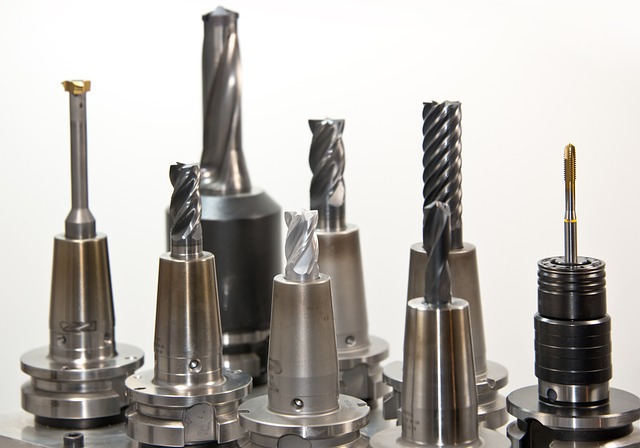
CNC Learning Roadmap 2026: From Zero to Confident Machinist
This roadmap takes you from knowing nothing about CNC to confidently writing programs and machining parts in about six months. Each phase builds on the previous one. Do not skip phases.
Phase 1: Fundamentals (Month 1)
Learn what CNC is and how machines work. Read the CNC Basics and What is CNC guides on this site. Watch videos of CNC machines cutting parts.
Topics: Machine types, CNC workflow, G-code overview, basic terminology.
Milestone: You can explain how CNC machining works to someone else.
Phase 2: G-Code Programming (Month 2)
Learn G-code structure and write your first programs. Practice on a free simulator.
Topics: G00/G01, G02/G03, G90/G91, G54-G59, M-codes.
Milestone: You can write a complete program from scratch.
Phase 3: CAM Software (Month 3)
Install Fusion 360 (free for hobbyists) and learn CAM workflow. Generate toolpaths from 3D models.
Topics: CAM setup, toolpath strategies, simulation, post-processing, feeds and speeds.
Milestone: You can go from 3D model to G-code independently.
Phase 4: Practical Machining (Months 4-6)
Machine your first real parts. Learn setup, workholding, and inspection.
Topics: Work offsets, tool setup, first projects, troubleshooting.
Milestone: You can complete a part from design to finished product.
What’s Next?
- [How to Learn CNC Machining](
G90 G54 G00 X0 Y0
G01 Z-0.05 F10
G01 X1.0 F20
G0 Z0.5
M30
/posts/how-to-learn-cnc-machining/)
Detailed Weekly Breakdown
Month 1: Fundamentals — Week by Week
Week 1: What is CNC?
- Read the What is CNC Machining guide
- Watch videos of CNC machines cutting parts
- Learn the difference between mills, lathes, and routers
- Understand subtractive manufacturing vs additive
Week 2: How CNC Machines Work
- Learn the three core systems: control, drive, cutting
- Understand axis movement (X, Y, Z)
- Learn the basic CNC workflow: CAD to CAM to G-code to part
- Visit a local makerspace or watch shop tours online
Week 3: CNC Terminology
- Learn key terms: spindle, collet, work offset, feed rate, RPM
- Understand G-code vs M-code
- Learn about cutting tools and tool materials
- Read the CNC Terminology Glossary
Week 4: Safety and Setup
- Learn CNC safety practices
- Understand workholding basics
- Learn about coolants and lubricants
- Review the CNC Basics guide
Month 2: G-Code Programming — Week by Week
Week 5: G-Code Structure
- Learn the structure of a G-code line
- Understand modal vs one-shot codes
- Learn the safety block: G90 G94 G17 G54
- Read the G-Code for Beginners guide
Week 6: Motion Commands
- Master G00 (rapid) and G01 (linear feed)
- Practice writing programs with straight-line moves
- Learn G02 and G03 for arcs and circles
- Use a free G-code simulator to test your programs
Week 7: Coordinate Systems
- Understand G90 vs G91 (absolute vs incremental)
- Learn G54-G59 work offsets
- Practice switching between modes
- Write a complete program from scratch
Week 8: Advanced G-Code
- Learn canned cycles (G81, G83 for drilling)
- Learn M-codes (M03, M05, M06, M08, M09, M30)
- Practice writing programs with multiple operations
- Simulate and verify every program
Month 3: CAM Software — Week by Week
Week 9: CAM Basics
- Install Fusion 360 (free hobbyist license)
- Work through the built-in CAM tutorials
- Learn the CAM interface and terminology
- Generate your first 2D contour toolpath
Week 10: 2D Toolpaths
- Learn 2D pocket toolpaths
- Learn drilling toolpaths
- Combine contour and pocket operations
- Simulate and verify your CAM output
Week 11: 3D Toolpaths
- Learn 3D adaptive clearing for roughing
- Learn 3D parallel and contour for finishing
- Compare cycle times between strategies
- Post-process for your machine controller
Week 12: CAM Project
- Design a simple bracket in CAD
- Generate complete toolpaths for all operations
- Simulate the full program
- Post-process and verify the G-code
Months 4-6: Practical Machining — Week by Week
Week 13: Machine Setup
- Learn to home the machine
- Set work offsets (G54) using an edge finder
- Set tool length offsets
- Practice the complete setup sequence
Week 14: First Cuts
- Start with the square pocket project
- Cut in scrap material first
- Measure the results
- Adjust feeds and speeds based on surface finish
Week 15-16: Drilling and Contouring
- Practice the bolt hole circle project
- Learn the curved contour project
- Combine multiple operations in one program
- Inspect and measure every feature
Week 17-20: Complete Projects
- Design and machine an engraved nameplate
- Machine a dovetail joint (two parts that fit together)
- Learn to adjust for fit tolerances
- Document your process and settings
Week 21-24: Independent Work
- Design your own project from start to finish
- Select materials, tools, and workholding independently
- Machine the part and inspect the results
- Identify and fix any issues without guidance
Additional Learning Resources
Free Online Resources
- CNC Dance tutorials (this site)
- YouTube channels: NYC CNC, Titans of CNC, Haas Automation
- Online forums: Practical Machinist, CNCzone, Reddit r/CNC
- Manufacturer tutorials: Autodesk Fusion 360, Carbide 3D
Books
- CNC Programming: Principles and Applications by Mike Mattson
- CNC Beginner Guide by Steven Thompson
- Machine Shop Trade Secrets by James Harvey
Software Tools
- Fusion 360 (free CAM for hobbyists)
- NCViewer (free browser-based G-code simulator)
- FSWizard (free feeds and speeds calculator)
- G-Wizard Editor (free trial, full-featured G-code editor)
Tracking Your Progress
Print this roadmap and check off each item as you complete it. Review your progress at the end of each month and adjust your pace if needed. Some people progress faster, some slower. The important thing is consistent practice.
| Week | Focus | Completed |
|---|---|---|
| 1-4 | CNC fundamentals | ☐ |
| 5-8 | G-code programming | ☐ |
| 9-12 | CAM software | ☐ |
| 13-16 | Machine setup and first cuts | ☐ |
| 17-20 | Intermediate projects | ☐ |
| 21-24 | Independent work | ☐ |
Common Questions About Learning CNC
Can I learn CNC without a machine? Yes. Free simulators let you practice G-code programming. CAM software like Fusion 360 is free for hobbyists. You can learn the complete programming workflow without ever turning on a real machine.
How many hours per week do I need? About 5-10 hours per week for the six-month timeline. More hours accelerate progress. Fewer hours extend the timeline proportionally.
What is the hardest part of learning CNC? Most beginners struggle most with CAM software because it combines CAD knowledge, machining knowledge, and software skills simultaneously. Take it slowly and work through tutorials systematically.
Do I need math skills? Basic arithmetic and geometry are sufficient. CAM software handles complex calculations automatically.
Can I make money with CNC? Yes. Many machinists start as hobbyists and transition to paid work through job shops, custom parts, or product manufacturing. Focus on building your skills first and proving you can make quality parts before taking on paying work.
Tips for Success
-
Practice consistently. Spend at least 30 minutes each day on CNC learning rather than several hours once a week. Daily practice builds skills faster.
-
Keep a notebook. Write down what you learn each day, including G-code examples, CAM settings, and mistakes. A notebook becomes a valuable reference over time.
-
Join a community. Participate in CNC forums and subreddits. Asking questions and helping others accelerates learning.
-
Start with simple projects. The square pocket is the CNC equivalent of hello world. Master it before attempting complex parts.
-
Learn from mistakes. Every broken tool and scrapped part teaches something. Document what went wrong and how to prevent it.
-
Use simulators. G-code simulators let you test programs without risking a machine or material. Use them extensively.
-
Set realistic goals. Learning CNC takes months, not days. Celebrate small milestones along the way.
Common Learning Pitfalls
Information overload. Beginners often try to learn everything at once — every G-code, every CAM feature, every machine specification. This leads to paralysis. Focus on the minimum needed for each phase.
Skipping fundamentals. Jumping directly to CAM software without understanding G-code is a common mistake. When CAM-generated code fails, you need G-code knowledge to debug it.
Starting with hard materials. Attempting steel or titanium as a first project guarantees frustration. Start with wood, MDF, or plastic.
Not measuring results. Cutting a part and moving on without measuring wastes learning opportunities. Measurement tells you whether your settings are correct.
Expecting perfection immediately. Your first parts will not be perfect. That is normal. Each part improves as you learn from the previous one.
Building Your Learning Environment
| Item | Purpose | Approximate Cost |
|---|---|---|
| Computer with CAM software | Design and programming | Existing computer is fine |
| G-code simulator | Test programs safely | Free |
| Notebook and pen | Document learning | $5 |
| Calipers | Measure parts | $20-50 |
| Scrap material | Practice cuts | $10-20 |
| Safety glasses | Eye protection | $5-15 |
You can complete Phase 1 and most of Phase 2 with just a computer and free software. A real machine is not required until Phase 4.
Printer-Friendly Learning Plan
Copy this page or print it. Use the checklist below to track your progress through all 24 weeks.
| Week | Topic | ☐ |
|---|---|---|
| 1 | What is CNC | ☐ |
| 2 | How CNC machines work | ☐ |
| 3 | CNC terminology | ☐ |
| 4 | Safety and setup | ☐ |
| 5 | G-code structure | ☐ |
| 6 | Motion commands | ☐ |
| 7 | Coordinate systems | ☐ |
| 8 | Advanced G-code | ☐ |
| 9 | CAM basics | ☐ |
| 10 | 2D toolpaths | ☐ |
| 11 | 3D toolpaths | ☐ |
| 12 | CAM project | ☐ |
| 13 | Machine setup | ☐ |
| 14 | First cuts | ☐ |
| 15-16 | Drilling and contouring | ☐ |
| 17-20 | Complete projects | ☐ |
| 21-24 | Independent work | ☐ |
Self-Assessment
At each milestone, ask yourself these questions:
End of Phase 1: Can I explain how a CNC machine works to someone who has never seen one?
End of Phase 2: Can I write a complete G-code program from scratch without looking at examples?
End of Phase 3: Can I take a 3D model and generate production-ready G-code?
End of Phase 4: Can I design, program, set up, and machine a complete part independently?
If you answer yes to all questions at each phase, you are on track. If not, spend more time reviewing the material before moving forward.
After the Roadmap
Completing this roadmap gives you a solid foundation in CNC machining. From here you can:
- Explore advanced topics like 4-axis and 5-axis machining
- Learn macro programming for parametric parts
- Study advanced CAM strategies for production optimization
- Build or buy a larger CNC machine
- Start a CNC service business
- Specialize in specific industries like aerospace, automotive, or medical
The skills you build in these six months form the foundation for a lifetime of CNC learning.
Suggested Weekly Study Schedule
| Day | Time | Activity |
|---|---|---|
| Monday | 30 min | Read one guide or tutorial |
| Tuesday | 30 min | Practice G-code on simulator |
| Wednesday | 30 min | Review terminology and concepts |
| Thursday | 30 min | CAM practice or project work |
| Friday | 30 min | Review the weeks material |
| Saturday | 1-2 hours | Extended practice or shop time |
Consistency matters more than the total hours spent. Thirty minutes daily is more effective than three hours once per week.
Summary
This six-month roadmap takes you from complete beginner to confident CNC machinist. The four phases progress from theory through programming to practical machining. Each phase builds skills that prepare you for the next.
The most important factor is not the specific materials or tools you use but that you start learning and keep going. Every expert CNC machinist was once a beginner who made the same mistakes you will make. Learn from them and keep moving forward.
The CNC Learning Roadmap 2026 provides a structured path from beginner to confident machinist. Follow it week by week, track your progress, and adjust your pace as needed. The skills you develop will serve you throughout your CNC journey.
 Free Online G-Code Simulators: Best Browser-Based CNC Tools for 2026June 27, 2026 · Resources
 AI in CNC Machining 2026: What Is Real vs Hype?June 27, 2026 · Resources
 CNC Part Finishing and Deburring Guide: Methods, Tools, and Best PracticesJune 27, 2026 · Guides
 CNC Lubrication Maintenance Schedule Guide: Keep Your Machine Running SmoothlyJune 27, 2026 · Guides